I. Introduction
A. The Limitations of Stock Firmware: Unlocking Hidden Potential
When you purchase a router, it often comes with stock firmware pre-installed by the manufacturer. While this software may be functional for everyday users, it usually lacks the flexibility and advanced features that tech-savvy individuals or businesses need. Stock firmware can limit the customization options, networking capabilities, and even the performance of your router, leaving you with a device that can do so much more. By unlocking your router’s hidden potential, you can enhance your network’s performance, security, and flexibility. This is where OpenWrt comes in.
B. What is OpenWrt? A Powerful, Community-Driven Router OS
OpenWrt is a robust, open-source firmware that transforms your standard router into a highly customizable, powerful tool. Unlike proprietary firmware, OpenWrt is community-driven, which means it’s constantly being improved by thousands of developers worldwide. This operating system supports a wide range of routers, providing a host of advanced features such as enhanced network security, bandwidth management, and the ability to add new software packages. With OpenWrt, you’re no longer bound by the limitations of your stock firmware; instead, you’re free to tailor your router’s functionality to your specific needs.
II. Preparing for the Installation
A. Checking Compatibility: Verifying if Your Router Supports OpenWrt
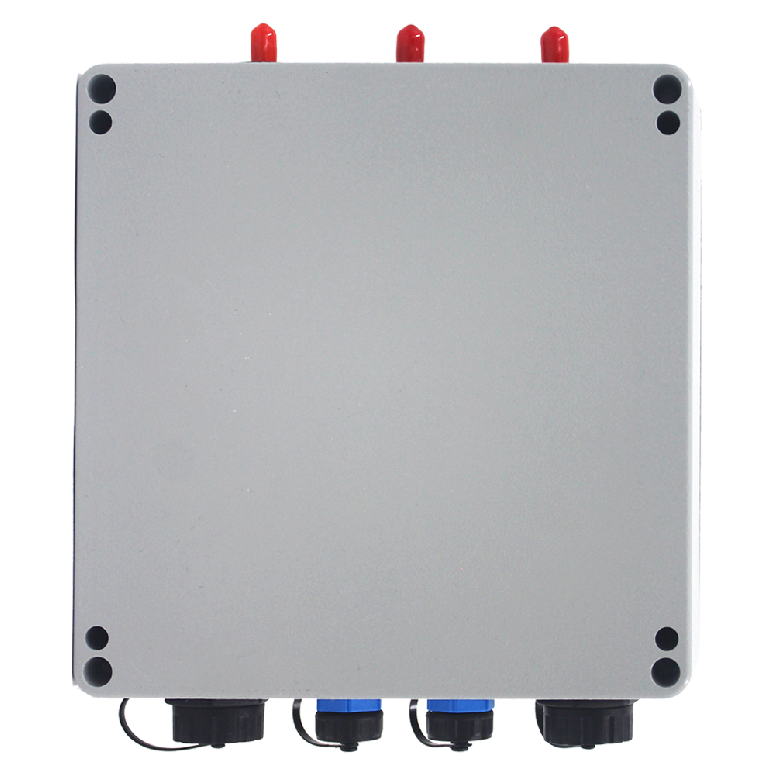
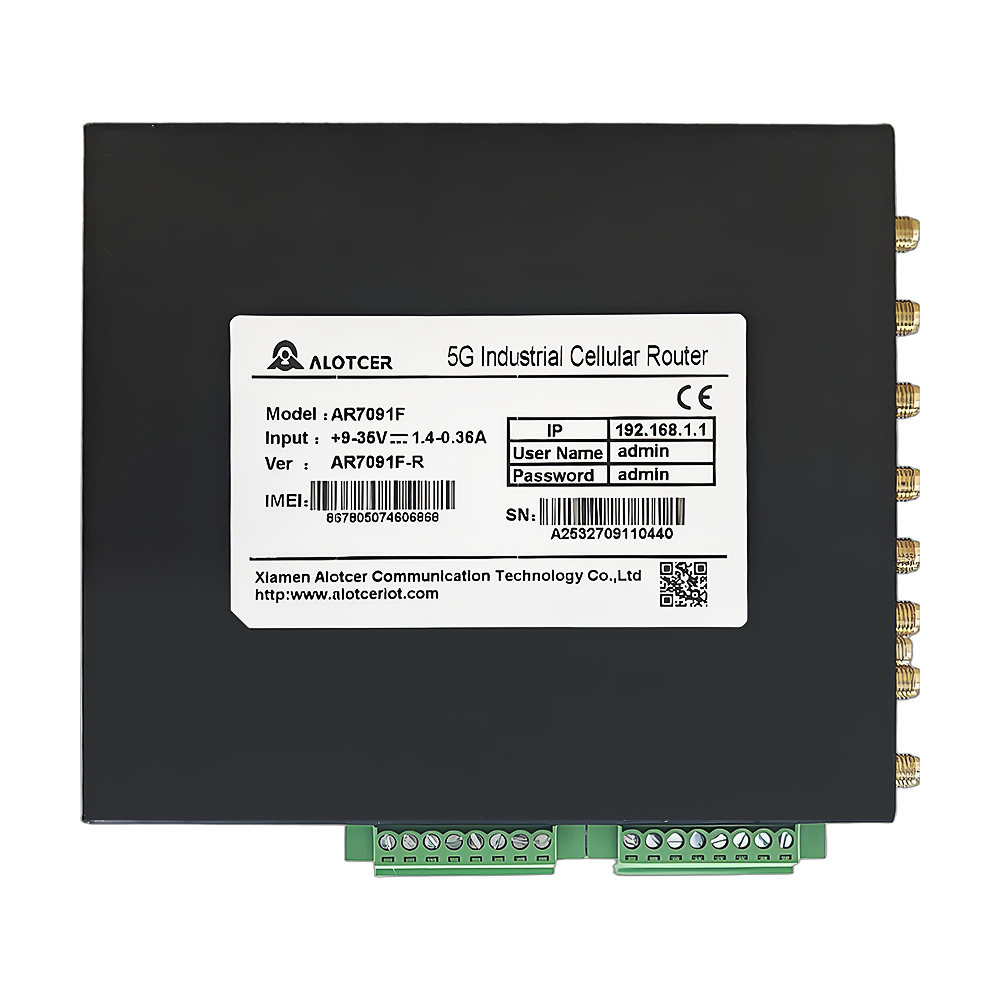
Before diving into the installation process, it’s crucial to check if your router is compatible with OpenWrt. Not every router on the market can support this open-source firmware, so visiting the official OpenWrt website and consulting their compatibility list is the first step. You’ll need to know your Industrial router make, model, and version to ensure that it’s capable of running OpenWrt. Skipping this step could lead to bricking your device, making it unusable.
B. Backing Up Your Existing Configuration: Safeguarding Your Network Settings
The next step is backing up your current configuration. Whether you’re upgrading from stock firmware or transitioning from another custom firmware, you’ll want to preserve your existing network settings. This includes your wireless network details, port forwarding rules, and any firewall settings. Most routers provide an option to back up configurations through their web interface. Taking this precautionary step ensures that you can revert to your original setup if anything goes awry during the installation process.
C. Gathering Necessary Tools: USB Flash Drive, SD Card, or TFTP Server
Now that you’ve verified compatibility and backed up your settings, it’s time to gather the necessary tools for installation. Depending on your router model, you may need a USB flash drive, an SD card, or access to a TFTP server. Many routers allow flashing OpenWrt through a web interface, but for those that don’t, these external tools provide alternative methods to upload the firmware. Having the right equipment ready beforehand can make the installation smoother and less stressful.
III. The Installation Process: A Step-by-Step Guide
A. Downloading the OpenWrt Image: Choosing the Right Version for Your Router
The first step in the installation process is downloading the OpenWrt image file that matches your router’s model. The OpenWrt website offers a wide selection of versions, but it’s crucial to pick the one tailored specifically for your device. Using an incompatible image can result in a failed installation or even permanent damage to your router. Once you’ve found the correct version, download it to your computer or the USB/SD card you’ll be using for the flashing process.
B. Flashing the Image: Using a USB Flash Drive, SD Card, or TFTP Server
Flashing the OpenWrt firmware can be done in several ways, depending on your router’s capabilities. Many users prefer using a USB flash drive or SD card to upload the firmware through the router’s web interface. However, if your router doesn’t support these methods, you can also use a TFTP server, a more advanced tool that allows you to install firmware over the network. Whichever method you choose, follow the instructions provided by OpenWrt carefully to avoid errors.
C. Accessing the OpenWrt Web Interface: Logging in to Your Router’s Configuration Page
Once the firmware has been successfully flashed, it’s time to access the OpenWrt web interface. Open your browser and enter the default IP address (usually 192.168.1.1) to log in to your router. From here, you can start configuring your network using OpenWrt’s powerful suite of tools. You’ll be prompted to set a secure password, which is critical for protecting your network from unauthorized access.
IV. Configuring Your OpenWrt Router
A. Basic Settings: Configuring Network Interfaces, Wireless, and Internet Access
After logging in, the first step in configuring your OpenWrt router is setting up the network interfaces, wireless options, and internet access. The OpenWrt web interface makes this process straightforward, allowing you to define how your router interacts with other devices on your network. Whether you need to assign static IPs or set up dynamic DNS, OpenWrt’s flexibility enables you to fine-tune your network with ease.
B. Advanced Features: Exploring Additional Options (VLANs, Firewall, Traffic Shaping)
OpenWrt doesn’t stop at the basics; it’s packed with advanced features that allow you to optimize your network for specific use cases. For example, you can create VLANs (Virtual Local Area Networks) to segment different devices on your network, enhancing both performance and security. Additionally, OpenWrt’s robust firewall features provide greater control over which devices and services have access to your network. Traffic shaping can also be configured, allowing you to prioritize bandwidth for critical services like video conferencing or online gaming.
C. Customizing Your Interface: Personalizing the Look and Feel of Your Router’s Web Interface
OpenWrt not only offers functional customization but also allows for visual personalization. You can modify the look and feel of your router’s web interface, making it more user-friendly and aesthetically pleasing. While these changes won’t impact the router’s performance, a well-organized interface can make managing your network a more pleasant experience, especially for users who need to access the settings regularly.
V. Troubleshooting Common Issues
A. Failed Installation: Verifying Image Compatibility and Flashing Process
If the installation fails, the first thing to check is whether you downloaded the correct image for your router. It’s easy to select the wrong version, especially if multiple models have similar names. Additionally, double-check the flashing process to ensure that no steps were missed. Some routers have specific procedures for flashing firmware, and skipping a step could result in a bricked device.
B. Network Connectivity Problems: Troubleshooting Internet Access and Device Connections
After installing OpenWrt, some users encounter network connectivity issues. This can often be attributed to incorrect configurations during the setup process. If your devices are having trouble connecting to the internet, revisit your network interface settings and make sure everything is configured correctly. Resetting the router and reconfiguring from scratch is sometimes the quickest way to resolve these problems.
C. Configuration Errors: Identifying and Resolving Incorrect Settings
OpenWrt offers many advanced features, but with great power comes the potential for mistakes. If your network isn’t functioning as expected, it’s possible that incorrect settings were applied during the configuration process. Reviewing logs and using the built-in diagnostic tools can help identify where things went wrong, allowing you to correct the issues without having to reinstall the firmware.
VI. The Benefits of OpenWrt: Why Make the Switch
A. Enhanced Flexibility: Customizing Your Router’s Functionality to Suit Your Needs
One of the greatest advantages of OpenWrt is the ability to customize your router to suit your exact needs. Whether you need advanced routing capabilities, VPN support, or additional network security features, OpenWrt’s modular nature lets you install the tools and packages you need while disabling or removing unnecessary components.
B. Improved Security: Implementing Advanced Security Features for a Safer Network
With OpenWrt, you have access to cutting-edge security features that aren’t available on most stock firmware. From enhanced firewall settings to VPN integration, OpenWrt helps you safeguard your network from external threats. Regular updates from the OpenWrt community ensure that vulnerabilities are patched promptly, giving you peace of mind in an increasingly dangerous cyber landscape.
C. Community Support: Accessing a Vast Resource of Knowledge and Assistance from the OpenWrt Community
Perhaps one of the best aspects of OpenWrt is the active and knowledgeable community that supports it. Whether you’re a novice looking for installation help or an experienced user searching for ways to optimize your network, the OpenWrt forums and documentation offer a wealth of information. Engaging with this community not only helps you solve problems but also opens doors to learning new ways to enhance your router’s performance.
VII. FAQ
- Is it safe to install OpenWrt on my router?
- Yes, OpenWrt is generally safe to install, but it’s crucial to verify your router’s compatibility and follow the installation steps carefully to avoid any issues.
- Can I revert back to the original firmware if I don’t like OpenWrt?
- Yes, most routers allow you to revert back to the original firmware by flashing the stock image. However, it’s always a good idea to keep a backup of the original configuration.
- Will installing OpenWrt void my router’s warranty?
- This depends on your router’s manufacturer. Some warranties may be voided by installing third-party firmware, so it’s important to check before proceeding.
VIII. Conclusion: Unlocking the Power of Your Router with OpenWrt
A. Recap: The Advantages of Installing OpenWrt
By installing OpenWrt, you’re unlocking a world of potential for your router. From advanced networking features to increased security, OpenWrt empowers you to get the most out of your hardware.
B. Encouraging Experimentation and Customization
Don’t be afraid to experiment with different settings and customizations. OpenWrt is incredibly flexible, and tweaking your configuration can help you create a network that’s perfectly suited to your needs.
C. Join the OpenWrt Community: Connecting with Other Enthusiasts and Seeking Support
Finally, remember that the OpenWrt community is a fantastic resource for learning, troubleshooting, and sharing ideas. Joining the community will not only help you optimize your setup but also keep you up-to-date with the latest developments.