I. Preparations Before Debugging
Embarking on the journey of debugging an industrial wireless router, thorough preparation is the cornerstone of success. The primary task is to clarify the network topology and connection methods, which includes the precise number and layout of devices, as well as the setup of wireless network names and passwords, ensuring information is accurate and error-free.

Next, checking the physical connections of the wireless router is crucial. Secure connections of power cords, network cables, and antennas are prerequisites for ensuring unobstructed network communication. Additionally, confirming a stable power supply to the wireless router and that network connections are in a normal state are necessary conditions for smooth debugging proceedings.
At the same time, prepare a computer or mobile device to assist in debugging, ensuring it is connected to the correct Wi-Fi network and that firewalls and security software, which may interfere with the debugging process, are disabled to clear obstacles for the debugging work.
II. Connection and Personalized Configuration of Wireless Routers
2.1 Easy Connection to Wireless Routers
Please properly connect the power cord, network cable, and antennas to the wireless router, then turn it on to start the device. As the indicator lights come on one by one, the wireless router officially enters its working state.
2.2 In-Depth Configuration of Wireless Routers
Using a computer or mobile device, easily connect to the Wi-Fi network of the wireless router. Enter the management address of the wireless router in the browser, such as 192.168.1.1, to step into the vast world of the management page.
On the management page, you can make a series of detailed configurations based on personal or business needs:
Personalized Wireless Network Settings: Name the wireless network, set a password, choose frequency bands and encryption methods to ensure the uniqueness and security of the network.
Network Basic Settings: Configure IP addresses, subnet masks, gateways, and DNS to lay a solid foundation for network communication.
Efficient Use of Port Forwarding: Map public IP addresses to internal IP addresses and ports to facilitate remote access to internal network devices.
Fine-Tuning of Wireless Channels: Optimize the bandwidth, power, and channel bandwidth of wireless channels to enhance signal quality and coverage, ensuring the smoothness of the wireless network.
System Settings Improvement: Set the device’s username and password, device name, and time zone to create a personalized network environment.
Security Settings Reinforcement: Enable the firewall, implement MAC address filtering, set up blacklists and whitelists to safeguard the wireless network’s security on all fronts.
III. In-Depth Debugging and Optimization of Wireless Routers
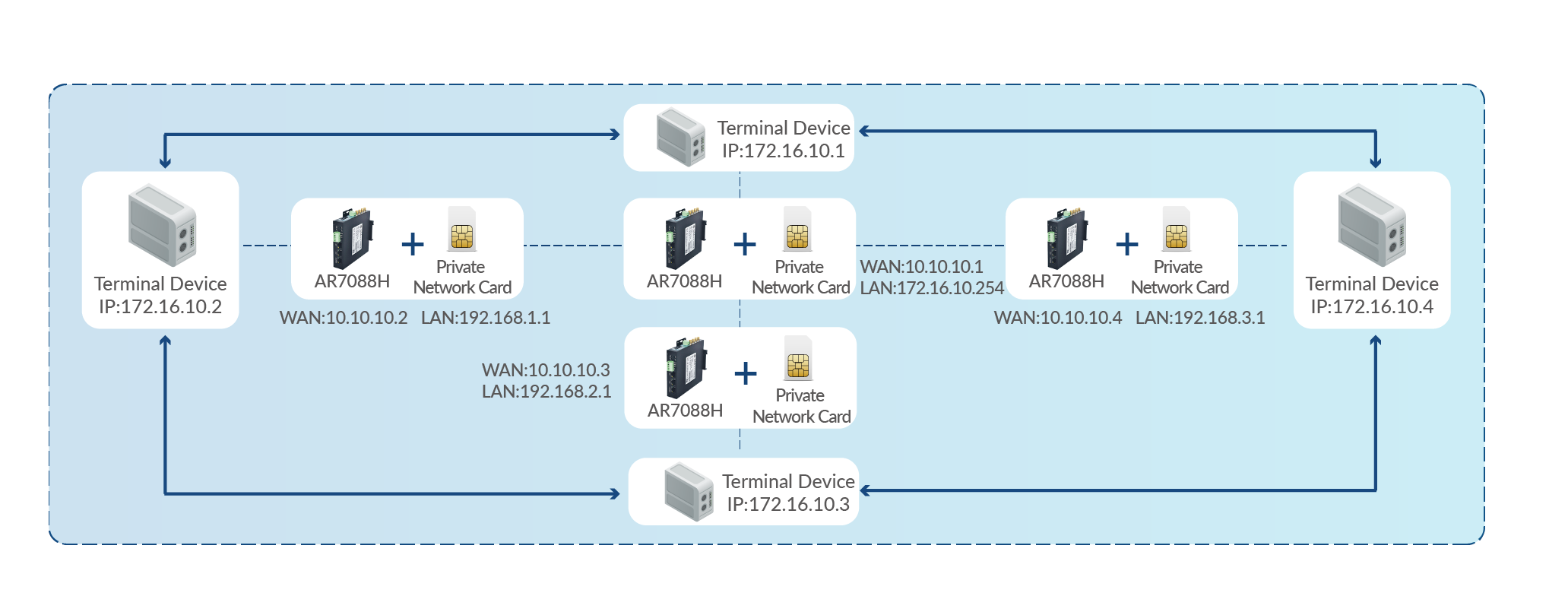
3.1 Comprehensive Check of Device Connection Status
On the management page, you can clearly perceive the status of device connections and IP address assignments. If device connection anomalies or IP address conflicts are detected, consider restarting the wireless router or manually adjusting the device’s IP address to quickly resolve connection issues.
3.2 Precise Assessment of Wireless Signal Quality
Utilize professional wireless network testing tools, such as Wi-Fi Analyzer, to meticulously analyze the quality and strength of wireless signals. Based on test results, select channels with better signal strength and quality, and reasonably adjust wireless signal power to ensure the coverage and stability of the wireless network.
3.3 Strict Testing of Data Transmission Performance
With the aid of data transmission testing tools, such as iperf, rigorously test the transmission speed and stability of the wireless network. Conduct data transmission tests between the wireless router and devices to ensure that the network’s performance and bandwidth meet actual requirements. If the data transmission speed is subpar or stability is lacking, try adjusting wireless channels, signal power, and network settings to optimize network performance.
3.4 In-Depth Check of Network Security
Employ network security testing tools, such as Nmap, to conduct a comprehensive check of wireless network security.Identify and rectify potential security vulnerabilities in a timely manner through port scanning and vulnerability detection.Also, regularly change wireless network passwords, restrict access rights of wireless devices, and turn off unnecessary services to safeguard the security of the wireless network.
IV. Notes During Debugging
When debugging industrial wireless routers, pay attention to the following key points:
Regularly back up the configuration files of the wireless router to ensure that configurations can be quickly restored after device failures or resets, reducing debugging time and costs.
Regularly update the firmware of the wireless router to fix vulnerabilities in a timely manner, enhance device performance, and ensure the stability and security of the network environment.
Choose wireless network protocols and encryption methods that comply with international standards to provide strong protection for the security and stability of the wireless network.
Avoid using vulnerable devices and software in the wireless network, such as unauthorized routers and wireless network cards, to reduce network security risks.
Regularly monitor the operation status and log information of the wireless network to identify and resolve potential issues promptly, ensuring continuous optimization and improvement of the network environment.